Rate Adjustments
Rate Adjustments
Rate Adjustments allow you to adjust a rate based on certain criteria. To name a few more popular scenarios.
- Charge more for pets
- Charge more for extra people
- Stay 6 days and get one day free
- Charge more on the weekends
- Give 10% off in the shoulder months
- Stay 3 days and get $20 off each day
Create a Rate Adjustment
- Go to Settings > Rate Adjustments
- Click the Add button
- Follow the steps for the rate adjustment (see steps below)
- Click “Save”
Step 1: Select the type of adjustment to create
 Click to enlarge
Step 2: Select calculation method, percentage or fixed amount
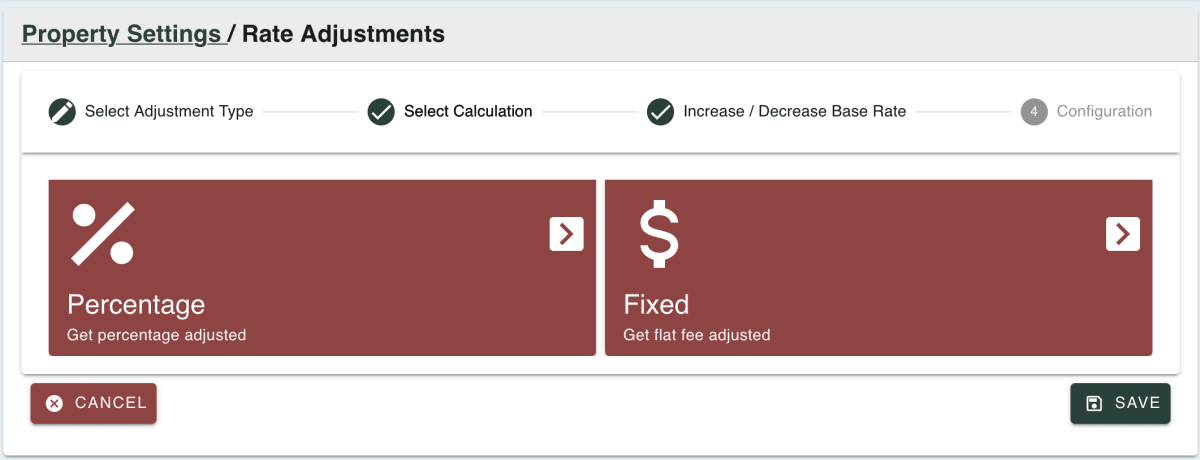 Click to enlarge
Important Note: Depending on the type of adjustment being made, the calculation method options may vary.
Step 3: Select to increase (add) or decrease (subtract)
 Click to enlarge
Step 4: Configure specific details for the adjustment type
 Click to enlarge
Assign to Rate Plan
There are two convenient ways to assign an Adjustment to Rate Plans
From the Rate Plan list
 Click to enlarge
- Go to Settings > Rate Plans
- Click the checkbox next to each Rate Plan you would like to add the Adjustment
- Click the button Add Adjustment
- Select the Adjustment from the drop down.
- Click Save
From the Rate Plan view
- Go to Settings > Rate Plans
- Click on the icon under the View column in the Plans section
![arrow]()
arrow - Alternate option: Click on the applicable name of the plan in the Plans section
- In the Rate Adjustments section, select the adjustment to add from the dropdown
- Click Add
